Yes, you can. I’m a marketer, not a software developer, and Claude Code is now the AI tool I use most. I don’t use it to build apps. I use it to run my CRM, plan blog content, research keywords, publish posts and schedule social media.
The name puts a lot of people off. “Code” sounds like it’s for programmers, and “CLI” (command-line interface) sounds worse. But the same thing is true of Claude Code, OpenAI’s Codex CLI and Google’s Gemini CLI: they’re built for coding, yet the skill underneath them is useful for nearly any work done on a computer.
So here’s my recommendation, and the reason for this post: if you’re a non-developer who wants AI to do more than chat, use an AI CLI tool, and use it in the terminal. It sounds like advice for programmers, but it’s the single change that made AI genuinely useful in my day-to-day work.
In this post I’ll explain what these tools actually are, how they differ from the chat apps you already use, and what I do with them without writing any code. Then I’ll compare the three main options, explain why I recommend the terminal over the desktop app, and cover whether it’s worth paying for.
Want help setting up AI tools that actually do the work?
If you want help getting Claude Code or another AI CLI tool connected to your CRM, content and marketing tools, I am happy to talk it through.
Email me Know more about meWhat is an AI CLI tool?
An AI CLI tool is an AI assistant that runs on your own computer, inside a folder you choose, and can take actions rather than just reply.
A chat app like ChatGPT or the Claude website gives you a conversation. You ask, it answers, and you copy the answer somewhere useful. An AI CLI tool works more like an assistant sitting at your desk. You give it a task, and it can:
- read and write files in your project folder: documents, spreadsheets, CSVs, notes
- run commands and small scripts to do things like clean up a spreadsheet or rename a hundred files
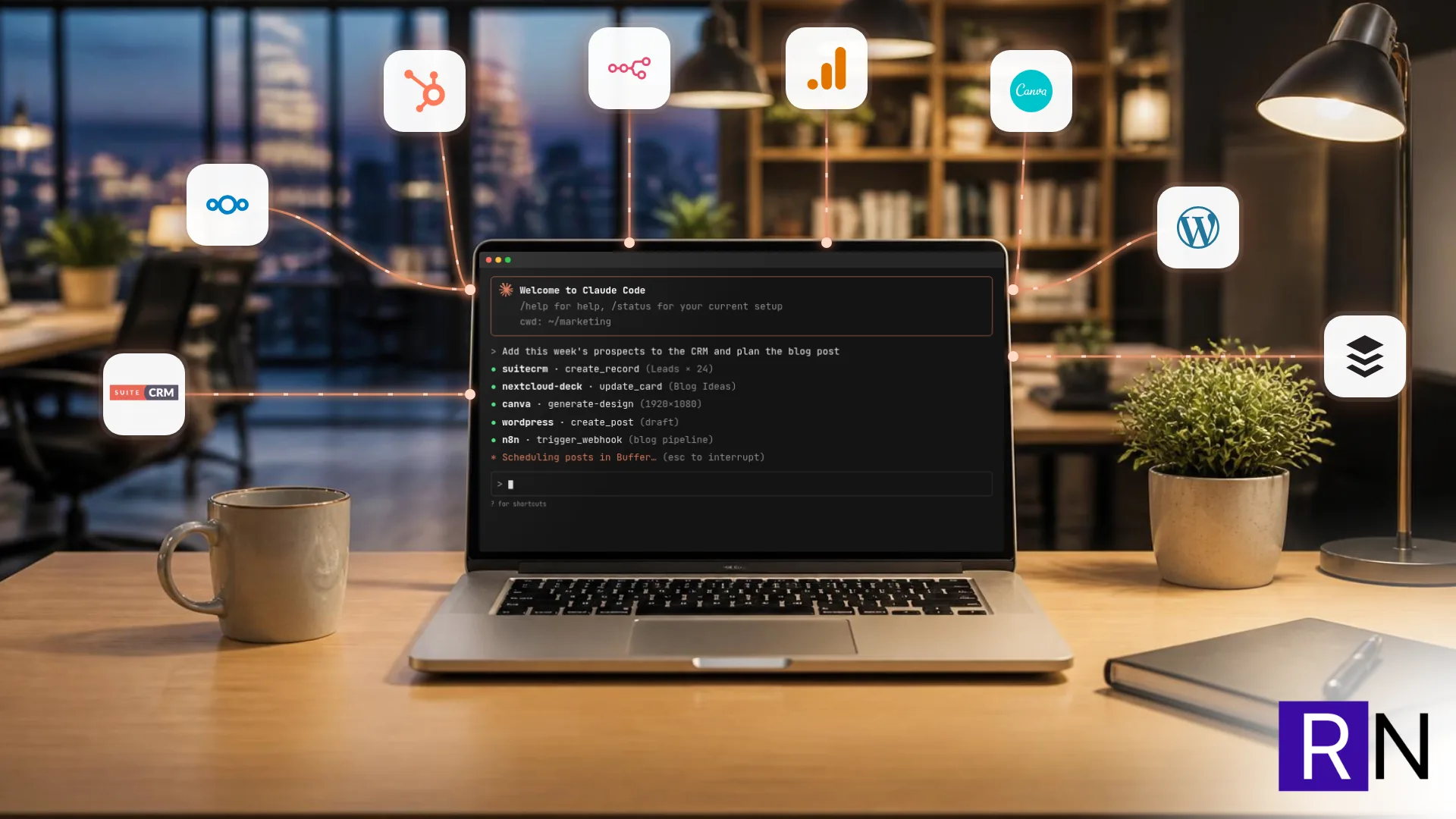
- connect to your other apps through connectors (more on these below) and work in them directly
- keep going over several steps until the task is done, checking its own work as it goes
The three best-known ones are:
- Claude Code from Anthropic
- Codex CLI from OpenAI, the company behind ChatGPT
- Gemini CLI from Google
All three were made for software developers, which is why they live in the terminal by default. But “can read files, use tools and work through a multi-step task” isn’t a coding skill. It’s just a useful way to work.
Can non-developers really use Claude Code?
Yes, with a couple of honest caveats.
You don’t need to know how to code. You describe what you want in plain English, the same way you would in a chat app. When Claude Code wants to run a command or change a file, it shows you what it’s about to do and asks for permission first. You can read the plan, say yes or no, or ask it to explain.
The terminal is far less scary than it looks. This is the biggest myth. You don’t type commands into it; you type requests in plain English, and the AI handles the commands. Claude Code does also run in a desktop app, in VS Code and in the browser, but the terminal is the version I use every day and the one I recommend (more on why below). After the first week it stopped feeling strange. It’s just a text box where you say what you want.
There’s a learning curve, but it’s in thinking, not syntax. The hard part isn’t the tool. It’s learning to break your work into clear tasks and to check the output before you trust it. Those are skills any manager already has.
Where it’s not a good fit: if you only ever ask one-off questions (“rewrite this email”, “what does this term mean”), a chat app is simpler and you don’t need any of this. AI CLI tools pay off when your work involves files, repeat tasks or several apps at once.
Claude Code vs Claude chat, desktop and ChatGPT: what’s actually different?
This is the question I see most, so here’s the short version.
| Chat apps (Claude, ChatGPT, Gemini) | AI CLI tools (Claude Code, Codex CLI, Gemini CLI) | |
|---|---|---|
| Where it works | In a chat window | In a folder on your computer |
| Files | You upload and download them | It reads and edits them in place |
| Actions | Mostly answers and drafts | Runs tasks, scripts and app connections |
| Multi-step work | You drive every step | It works through the steps and reports back |
| Memory | Per chat or per project | Project instructions and notes saved as files in your folder |
| Best for | Questions, writing, brainstorming | Repeatable work, data, operations across several apps |
The line between the two is blurring. The chat apps now have projects, file uploads and connectors of their own, and I’ve written before about why you should be using projects and workspaces in your AI tools. But the core difference holds. A chat app talks about your work. An AI CLI tool does the work, in your files and your apps, and shows you what it did.
What I use Claude Code for without writing code
Here’s what my week actually looks like. None of it involves me writing code.
Running my CRM
I connected Claude Code to my SuiteCRM. When I prospect for new clients, I paste a list of people from LinkedIn Sales Navigator, and Claude Code checks each one against the CRM for duplicates, looks up company websites, finds email addresses through Hunter, creates the Leads, adds them to a target list and sets up the email campaign. That used to be an afternoon of copy and paste. Now it’s a request and a review.
Planning content
My blog ideas live on a board in Nextcloud Deck, which I wrote about in How I Plan Content in Nextcloud Deck, and Let AI Fill the Ideas Column. Claude Code can read the cards, suggest new ideas, and write plans and drafts straight onto them.
Keyword research
The research for this post was done in Claude Code. I gave it the link to the card on my Deck board. It read the topic, pulled search volumes and autocomplete suggestions from Ubersuggest, checked who was ranking, and wrote the keyword plan back onto the card. When I said I didn’t want the post to be only about Claude Code, it checked the more generic phrasings, found that almost nobody searches for them, and suggested the title you’re reading now. I’ve covered a similar setup in more detail in How to Run Complete SEO Audits with Claude.
Publishing and social media
Claude Code can publish a post to WordPress with its featured image and SEO fields filled in, and then draft the social posts for it in Buffer. I still read and approve everything, but I’m no longer the person moving text between five browser tabs.
The connectors that make this work
All of the above runs through MCP (Model Context Protocol) connectors. An MCP connector is a small bridge that lets the AI use another app safely: your CRM, project board, email, website or design tool. Many popular apps now have a ready-made one you just switch on. For the rest, Claude Code can help you build one, and it does the coding for you.
This is the real reason I recommend AI CLI tools to non-developers. You get one assistant that can work across all your tools at once, instead of a chat window you copy and paste out of.
Claude Code, Codex CLI or Gemini CLI: which suits a non-developer?
All three can do the kind of work above, and all three improve every few months. Here’s how I’d think about them.
Claude Code is the one I use. It’s included with Claude’s paid plans. Its strengths for non-developers are how carefully it explains what it’s about to do, how well it writes, and how mature its connector support is. It also has the widest choice of places to use it: terminal, desktop app, VS Code and browser.
Codex CLI is OpenAI’s version and is included with ChatGPT’s paid plans. If your team already pays for ChatGPT, it’s the obvious one to try first, because you won’t need another subscription.
Gemini CLI is Google’s version. It has had a generous free allowance with a personal Google account, which makes it the cheapest way to find out whether this way of working suits you at all.
My honest advice: pick the one that matches the AI subscription you already have and try it on one real, boring, repeatable task. The tool matters less than whether you build the habit. If it clicks, you can compare the others later.
Why I recommend the terminal, even for non-developers
A lot of advice for non-developers says to skip the terminal and use the desktop app. I’d say the opposite. Here’s why I think the CLI version is the better choice, not just the developer choice.
- It’s the same everywhere. Claude Code, Codex CLI and Gemini CLI all work the same way in the terminal: open a folder, type your request. Learn one and you’ve learned them all, so you’re never locked into one company’s app.
- New features arrive there first. The CLI is the main product. The desktop app and editor plug-ins often get features later.
- It can use every tool on your computer. In the terminal, the AI can run the small command-line utilities that come with your system (for converting files, resizing images, processing spreadsheets) as well as the connectors to your apps. That’s a lot of extra ability for free.
- Your work stays in folders you control. Each project is just a folder. The instructions, notes and files the AI uses live there, so you can back them up, share them or move them to another tool.
- It runs anywhere. The same tool works on a laptop, a desktop or a small server. I use mine every day on my Fedora Linux setup.
- It’s lighter and faster. No extra app windows. One text window, one folder, one assistant.
How to get started in the terminal
You only need to know three things:
- Open the terminal. It’s called Terminal on a Mac and on Linux, and Terminal or PowerShell on Windows.
- Go to a folder for your project. Type
cdfollowed by the folder’s path, for examplecd Documents/marketing. Better still, make a new folder just for your first project. - Start the tool. Type
claudefor Claude Code,codexfor Codex CLI orgeminifor Gemini CLI, and press Enter. From then on, just type what you want in plain English.
Installing the tool is usually a single command copied from the official website. If you get stuck, ask your chat app to walk you through it for your computer.
If the terminal really isn’t for you, the desktop app is a perfectly good fallback with most of the same powers. But give the terminal a week first. It took me about that long to stop noticing it.
Is it worth it?
On cost: you need a paid plan for Claude Code and Codex CLI, so check the current plan pages for prices and usage limits. These change often. If you already pay for Claude or ChatGPT, the CLI tool is usually included, so you’re getting more out of a subscription you already have.
On time: the payback comes from repeat work. If you do the same multi-step job every week (building lead lists, updating a CRM, formatting reports, publishing content), automating even half of it pays for the subscription quickly.
On risk: these tools can change real files and real records, so treat them like a capable new hire. Keep the permission prompts switched on while you learn, work on copies of important files, and check the output before it goes anywhere public. The AI is fast, but it’s still your name on the result.
If you want to see what this looks like with a fully self-hosted setup instead, I’ve also written about running an AI agent for marketing on my own laptop with Hermes and LM Studio.
FAQ
Can Claude Code be used by non-developers?
Yes. You give it instructions in plain English, and it asks permission before running commands or changing files. Non-developers use it for research, data clean-up, CRM updates, content planning and publishing, often by connecting it to their other apps through MCP connectors.
Do I need to use the terminal for Claude Code?
No. Claude Code also runs in a desktop app, in VS Code and in the browser. But I recommend the terminal: it works the same way across Claude Code, Codex CLI and Gemini CLI, gets new features first, and can use every tool on your computer. You type plain English, not commands.
What’s the difference between Claude Code and the Claude app?
The Claude app is a chat: you ask, it replies. Claude Code works inside a folder on your computer and can read and edit files, run tasks and use connected apps, working through several steps before it reports back.
What are AI CLI tools?
AI CLI tools are AI assistants that run from your computer’s command line, such as Claude Code, Codex CLI and Gemini CLI. They can read files, run commands and connect to other software, so they can complete tasks rather than just answer questions.
Which AI CLI tool is best for beginners?
Start with the one that matches the AI subscription you already have: Claude Code with Claude, Codex CLI with ChatGPT, or Gemini CLI with a Google account. They’re similar enough that building the habit matters more than which one you pick. Whichever you choose, I recommend running it in the terminal.