
If you’re looking for self-hosted email marketing software, SuiteCRM is definitely worth checking out. It’s an open-source CRM that can handle proper multi-step email drips at no cost. You can send three emails spaced a week apart to your target list, with opens, clicks and unsubscribes tracked against every lead. There’s no need for Mailchimp, no per-contact pricing and no hassle of copying lists between different tools.
SuiteCRM is well documented and used by many businesses, but getting a drip sequence to actually send takes a few steps that are easy to miss. I learned this the hard way. My first attempts created campaigns that looked perfect inside the CRM but never sent a single email.
I now run every outreach batch through SuiteCRM. In the last three months (August to October 2026), that came to 1,941 campaign emails, all sent by SuiteCRM’s own scheduler on a self-hosted SuiteCRM 8 install. This post covers the setup that works, why it works, and the mistakes that cost me several batches along the way.
Want help getting SuiteCRM email campaigns working?
If you want help setting up drip campaigns, target lists or the scheduler in your own SuiteCRM, I am happy to talk it through.
Email me Know more about meWhy use SuiteCRM as self-hosted email marketing software?
Most self-hosted email marketing software is a separate tool: Mautic for marketing automation, Listmonk for newsletters, and so on. They are good at what they do, but your leads then live in two places, and you spend time syncing lists between them.
SuiteCRM takes a different approach. The email campaigns run inside the CRM, against the same Leads and Contacts your team already works with. That gives you:
- No per-contact pricing. You pay for your server, not for the size of your list.
- Your data stays on your server. Leads, opens, clicks and unsubscribes never leave your own install.
- One record per person. Every email sent, opened or clicked is logged on the lead itself, right next to your notes and calls.
If you already self-host SuiteCRM, it’s the simplest self-hosted email marketing platform you can add, because there is nothing new to install. You just need to configure it properly.
How a SuiteCRM email campaign is actually structured
What confused me most at first was that a “campaign” in SuiteCRM isn’t just one thing. A working drip campaign actually links together four different types of records:
- Target lists (ProspectLists): who receives the emails, and who must never receive them.
- A Campaign record: the container that holds the lists and the emails, and collects the results.
- Email Marketing records: one per email in the sequence. Each has its own subject, body, sender and start date.
- The schedulers: background jobs, run by cron, that queue and send the emails when their start date arrives.
If all four are set up right, SuiteCRM handles the sending on its own. If you miss even one, you end up with a campaign that looks finished but does nothing. There is no error message to tell you this is happening, which makes it so easy to mess up.
Step 1: Build your target lists
A target list is just a named group of Leads, Contacts, Targets or Accounts. For outreach, I create one list per batch and name it by date, such as “2026-10-12 UK”. Every lead I add to the CRM that day goes into that specific list.
There are two types of list you need to understand:
- Default lists are the people you want to email.
- Suppression lists (shown as “Suppression List – By Id” in the type dropdown) are the people you must not email. When someone unsubscribes from a campaign, SuiteCRM adds them to that campaign’s suppression list, and they are skipped for every later email in it.
Here is a lesson I learned too late: if you create a new suppression list for every campaign (as the wizard suggests), someone who unsubscribes from this week’s campaign can still be emailed by next week’s. The unsubscribe only applies within the specific campaign where it happened.
My fix is using one shared suppression list, linked to every new campaign. Anyone who unsubscribes anywhere lands on one list and is blocked from all future emails. If you run campaigns regularly, set this up from day one because merging separate lists later is a real chore.
Two more checks before you move on:
- Leads with no email address still go into the list, and SuiteCRM simply skips them. That is fine, but count only the leads with an email when you estimate your send.
- Use a Test list. SuiteCRM has a “Test” list type. Put your own address and one or two colleagues in it, so you can see the real rendered email before it goes to anyone else.
Step 2: Create the Campaign record
In the Campaigns module, create a new campaign. I prefer using the Newsletter type for both outreach efforts and standard newsletters because it handles suppression lists and provides the necessary marketing email steps. Give it a clear name (I use the send date, such as “12th October”), plus a start and end date.
Next, connect your lists to the campaign by attaching both your target list and your shared suppression list. In SuiteCRM, both are linked through the same “Target Lists” relationship. Only the list type determines whether the system sends to a group or excludes them, so always double-check that setting for each one.
Step 3: Add one Email Marketing record per email
This step is what transforms a simple campaign into a drip sequence. Every email in the series is its own Email Marketing record assigned under the main campaign; for a three-email run, you would create separate records named “Email 1”, “Email 2” and “Email 3”.
Each record needs:
- A sender: the outbound email account the email goes out from. Set this up once under the admin email settings and reuse it.
- A subject and body, either written in the record or pulled from an Email Template.
- A start date and time: when this email should go out.
- Target lists: which of the campaign’s lists this email goes to. Link the same target list to each email rather than relying on “all lists”, so there is no doubt about who gets what.
Personalisation and the unsubscribe link
When sending, SuiteCRM automatically fills in mail-merge variables. My most common uses are $lead_first_name and $lead_account_name (the company name), appearing in subject lines like “idea for $lead_account_name”.
Every marketing email must include an unsubscribe link. Use the tracked unsubscribe link built into SuiteCRM ({{ unsubscribe_link }} in my emails) rather than a plain mailto link. The tracked link automatically adds the recipient to your suppression list, whereas a manual mailto link just sends you an email you then have to deal with by hand.
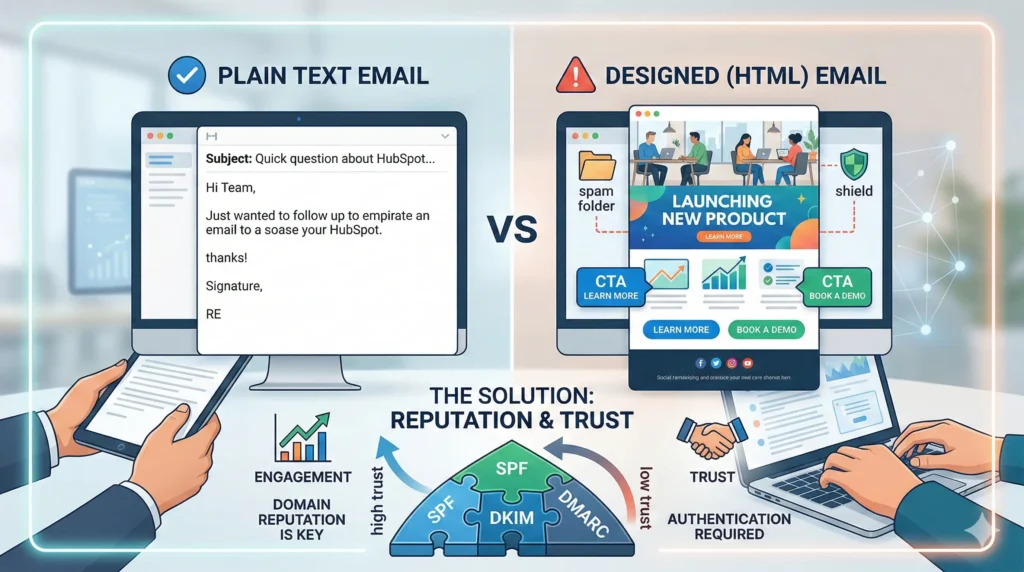
Keeping emails plain usually helps them land in the inbox more often than complex HTML designs; a short message with a simple signature works best. I explained why in New to Email Marketing? Here’s Why Your Designed Emails Go to Spam.
Making follow-ups look like replies
Here’s a trick that actually works well for outreach: give your follow-up emails (number 2 and 3) the same subject line as the first one, just adding “Re:” to the front, and quote the earlier messages underneath your new text like a standard mail client would. This makes the follow-up feel like a nudge in an ongoing conversation rather than another fresh marketing blast.
There is one limitation: SuiteCRM can’t set technical reply headers, so the recipient’s mail client groups everything by subject line alone. In practice, that’s good enough for most purposes.
Step 4: Space the emails out with start dates
There isn’t a separate “wait 7 days” step in SuiteCRM, nor is there a sequence builder. The time gap between emails depends entirely on the start dates set on the Email Marketing records.
For a weekly drip starting on a Monday:
| Start date | Purpose | |
|---|---|---|
| Email 1 | Mon 12 Oct, 12:00 | The offer |
| Email 2 | Mon 19 Oct, 12:00 | Short follow-up, as a reply |
| Email 3 | Mon 26 Oct, 12:00 | Closing the loop |
Once each date passes, the schedulers grab the next email and send it to everyone on the list who hasn’t been suppressed yet. Anyone who unsubscribed after email 1 is automatically skipped for emails 2 and 3.
It’s not as flexible as a dedicated sequence tool; for instance, SuiteCRM won’t stop a sequence when someone replies, so you have to move those people out of the list yourself. Still, it’s simple, predictable, and you can view the whole sequence on one screen.
Step 5: Make sure the scheduler is running
This is where most “SuiteCRM campaign not sending” problems come from. SuiteCRM won’t send campaign emails when you click save; instead, it relies on scheduled jobs to dispatch them. These jobs only trigger if your server’s cron calls SuiteCRM every single minute.
On SuiteCRM 8, the cron entry should look like this and must be added to the crontab for the web server user (often named www-data):
* * * * * cd /path/to/suitecrm/public/legacy; php -f cron.php > /dev/null 2>&1It is critical that this runs as the web server user, not root. If it runs as root, files get created that the web server can’t write to later. Additionally, SuiteCRM maintains an allowed-users list for cron that will simply refuse any other users.
Next, go to Admin > Schedulers and check the campaign jobs. This is where older guides often mislead you. Many suggest activating a job called Run Nightly Mass Email Campaigns, but on my SuiteCRM 8 install, that job is inactive and has never run, yet campaigns still send fine. The actual work is handled by two newer jobs that both run every minute:
- Queue Campaign Emails: finds Email Marketing records whose start date has passed and puts each recipient into the send queue.
- Send Campaign Emails: works through that queue and actually sends.
If either of those is inactive, nothing will get sent out. A quick health check is to look at the “Last Run” column on the Schedulers list. If it shows the current minute for these jobs, your cron is working. If it shows a date from last week, your cron entry is broken.
While you are there, also take a look at Run Nightly Process Bounced Campaign Emails. It reads the bounce mailbox and marks bad addresses, which helps keep your list clean over time.
Common reasons a SuiteCRM drip campaign doesn’t send
These are the failures I have hit myself.
The campaign points at the wrong list. I once rebuilt a target list and renamed the old one “DEPRECATED”, but the campaign was still linked to the old one. All three emails were blocked and twenty leads were never contacted. SuiteCRM did not complain. The only sign was in the campaign’s status report. Always open the campaign and check which lists are actually linked before the first send date.
The start date never saved. Creating Email Marketing records through the API with an ISO-style date (2026-10-12T12:00:00+00:00) silently left the field empty. A plain 2026-10-12 12:00:00 format worked. If you script campaigns, read the record back after creating it and confirm the date is there.
Cron is not running, or runs as the wrong user. Everything looks scheduled and nothing happens. Check “Last Run” on the Schedulers page.
People get suppressed who never clicked unsubscribe. This one surprised me. Many company mail servers run link scanners that “click” every link in an incoming email to check it for threats, including your unsubscribe link. In one month, 58 of my 62 unsubscribes happened within two minutes of sending, most of them in the same second the email arrived. No human unsubscribes that fast. Those scanner clicks put real prospects on the suppression list and blocked 92 later emails in the drip. Watch for unsubscribes and opens timestamped at the moment of sending, and treat them as bots, not people.
Leads are missing emails or are duplicates. These show up as blocked entries in the campaign log. While they cause no harm, they will inflate your “targeted” numbers.
How to check what actually happened
Open the campaign and use View Status to see how SuiteCRM breaks results down per email: sent, viewed (opened), clicked, unsubscribed (“removed”), bounced and blocked. Every row links to an individual lead, so you can clearly see exactly who opened what.
Two things I have learned about reading these numbers:
- Open rates are inflated by the same scanners that fake unsubscribes, and by mail clients that preload images. Use opens as a rough signal, not a score.
- Replies are the only number that matters for outreach, and SuiteCRM does not count them, because replies arrive in your inbox, not in the campaign. I log replies against the lead by hand. My first version of the copy produced one reply from 1,298 sends, which is what pushed me to rewrite it completely.
Is SuiteCRM good enough as self-hosted email marketing software?
For small-volume, list-based outreach and newsletters, the answer is yes. You get multi-step sequences, per-lead tracking, suppression handling and reporting, all inside the CRM where your leads already live, with no extra subscription needed.
However, it isn’t the right tool if you need visual automation flows, branching based on behaviour, or a “stop-on-reply” feature. It also leaves deliverability entirely in your hands: you must manage the sending domain, SPF, DKIM and DMARC, plus warming up the mailbox yourself. A SaaS platform handles more of that for you. And if you need advanced automation flows but still want to self-host, a dedicated self-hosted email marketing application like Mautic is the better fit.
If you already self-host SuiteCRM, though, it is worth setting this up properly before paying for another tool. If you are still deciding whether to run SuiteCRM yourself, I covered the latest release in What’s New in SuiteCRM 8.9.
FAQ
What is the best self-hosted email marketing software?
It depends on what you need. Listmonk is a strong choice for newsletters, Mautic for marketing automation with branching flows, and SuiteCRM if your leads already live in a CRM and you want campaigns, tracking and unsubscribes all in one place.
Why is my SuiteCRM email campaign not sending?
The most frequent issues are that cron isn’t running every minute as the web server user, the “Queue Campaign Emails” or “Send Campaign Emails” scheduler is inactive, the Email Marketing record lacks a start date, or the campaign is linked to an incorrect target list. Start by checking the “Last Run” times under Admin > Schedulers.
Can SuiteCRM send drip campaigns automatically?
Yes. Create one Email Marketing record per email within a single campaign and assign each a different start date. The schedulers will send every email when its specific date arrives, automatically skipping anyone who unsubscribed from an earlier one.
What is a suppression list in SuiteCRM?
It’s a target list of people who must not receive emails. When someone clicks the tracked unsubscribe link, SuiteCRM adds them to the campaign’s suppression list. By sharing one suppression list across all your campaigns, an unsubscribe action applies everywhere rather than just in a single campaign.