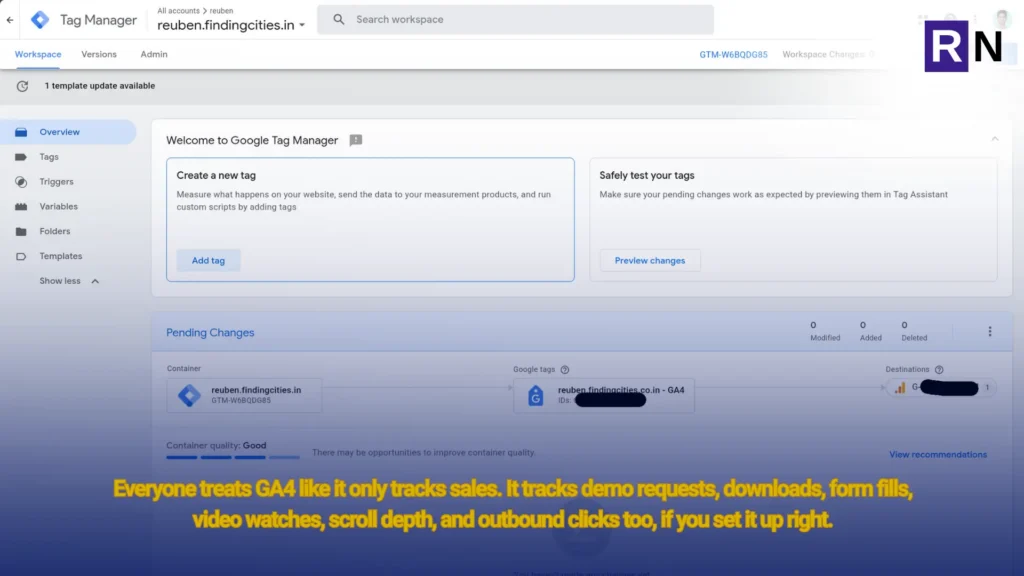
Most GA4 implementations I inherit from clients look the same: the default install snippet dropped in by a developer two years ago, zero custom events, and a “Conversions” tab with maybe one goal that’s actually firing correctly. Meanwhile the client is asking why their ad spend “isn’t working” when the truth is they’ve never been able to see what’s working in the first place.
B2B is a different animal from ecommerce here. There’s no neat purchase event with a revenue value attached. Your real conversions are things like a demo request, a pricing page visit, a whitepaper download, a chatbot conversation that turns into a qualified lead. If your GA4 + GTM setup isn’t built around that reality, you’re just collecting noise.
Here’s the setup I actually use, the one that’s earned its place after running it across industrial B2B, SaaS, and services clients.
Start With a Server-Side Container (When It’s Worth It)
For clients running any real ad spend on Meta or Google, I push for server-side GTM sooner than most agencies do. iOS privacy changes and ad blockers have quietly wrecked client-side tracking accuracy over the past few years, and B2B buyers, often on corporate networks with aggressive security tooling, are exactly the audience most likely to get blocked.
A server container running through a service like Stape gives you first-party cookie handling and lets you clean up the data before it hits GA4, Meta CAPI, or LinkedIn’s Conversions API. It’s more setup work up front, but for a client spending real budget on LinkedIn Ads, the attribution accuracy alone pays for it.
That said, I don’t reach for this by default. A smaller client running organic and a modest Google Ads budget doesn’t need the added complexity. Match the setup to the spend.
The Event Taxonomy Comes Before Any Tag
The mistake I see most often is people opening GTM and start building tags immediately. I map the taxonomy first, on paper, before touching the container.
For a typical B2B client, that list looks something like:
form_startandform_submit(split these; abandonment data is gold for CRO)demo_requestpricing_page_viewcase_study_downloadpdf_download(generic, with afile_nameparameter)outbound_click(to distinguish site traffic sending value elsewhere)phone_clickandemail_clickchat_widget_engagedvideo_engagementat 25/50/75/100%scroll_depthon key pages like pricing and product
Naming convention matters more than people think. I keep everything snake_case, verb-first where it makes sense, and I never let two people on the same team invent their own event names. That’s how you end up with Demo_Request, demoRequest, and demo-form-submitted all firing for the same action, and nobody trusts the reports six months later.
GA4 Configuration: Mark the Real Conversions, Ignore the Rest
Once the events are firing cleanly through GTM, in GA4 I mark as conversions only the events that actually represent business value: demo_request, pricing_page_view (as a lead-intent signal, not a hard conversion, depending on the sales cycle), and any gated content downloads tied to lead capture.
I deliberately don’t mark things like scroll depth or video engagement as conversions. They’re engagement signals that belong in exploration reports and audience building, not on the conversions dashboard where a sales-side stakeholder is going to see them and ask why “scroll” counts as a lead.
I also set up custom dimensions early for things that matter in B2B specifically:
- Lead source detail (beyond default channel grouping; I want to know if it came from a specific LinkedIn campaign or a specific outbound sequence)
- Company size or industry, when it’s passed through form fields
- Content category, for clients running a resource library
Connecting the Dots to the CRM
This is the step most GA4 setups skip entirely, and it’s the one that actually matters for B2B. A form submission in GA4 tells you a lead came in. It tells you nothing about whether that lead turned into a qualified opportunity or a closed deal.
For clients on HubSpot or SuiteCRM, I push to get a shared identifier, usually a hidden form field capturing the GA client_id or a UTM-persisted hidden field, passed into the CRM at the point of submission. That’s what lets you eventually close the loop: pull deal data back out of the CRM and match it against the acquisition channel that originally brought the lead in.
Without this, you’re optimizing campaigns based on lead volume, which in B2B is close to meaningless. A campaign that produces 50 low-intent leads is worse than one producing 10 that turn into pipeline. GTM and GA4 alone can’t tell you that; the CRM connection is what makes the whole stack actually useful for a sales-driven business.
The Tags I Set Up in Nearly Every Container
A few tags show up in almost every B2B GTM container I build, regardless of industry:
- Enhanced form tracking using a form listener trigger rather than relying on native GA4 form events, since native detection misses a lot of custom-built or multi-step forms
- LinkedIn Insight Tag, fired site-wide, with conversion events layered on top for the events above. LinkedIn’s matched audience quality is worth the setup time for most B2B clients
- Google Ads conversion tracking, tied to the same underlying GA4 events rather than duplicated separately, so definitions of “what counts” stay consistent across platforms
- A consent mode v2 setup, non-negotiable for UK and EU clients, and increasingly relevant in the UAE and GCC as data protection regulation matures
Testing Before It Ever Goes Live
I don’t push a container to production without running it through GTM’s Preview mode against every major event on the taxonomy list, and I check the DebugView in GA4 alongside it. It’s tedious, but I’ve seen too many “fully set up” GA4 properties where a form event fires twice, or a conversion event was never actually renamed correctly after a copy-paste from another client’s container. That kind of error sits invisibly in the data for months and quietly wrecks every reporting conversation after it.
Where This Actually Pays Off
None of this is complicated in isolation. What makes it work is doing it in the right order: taxonomy before tags, conversions mapped to actual business value, and a CRM connection that closes the loop back to revenue. That’s the difference between a GA4 property that looks populated and one a sales team can actually use to answer “where are our best leads coming from.”
If your current setup can’t answer that question in under a minute, it’s worth an audit.