Most small teams find out about a new lead late. The web form drops an email into a shared inbox, and the lead goes cold before anyone opens it. An n8n marketing automation fixes that. A web form posts to n8n, n8n cleans the data, checks for duplicates, creates the record in SuiteCRM, tells the right person straight away, and sets up a follow-up task. Here is how I build it, the order that works, and the pitfalls to avoid.
When I had a full-time job, leads never came to me directly. It took at least 24 hours before I could reply, and even then they often landed when I was tied up at work, so some were simply forgotten. The worst part was that I tracked all of it in Excel spreadsheets and emails.
The short answer: use a webhook trigger, normalise and filter the data, search SuiteCRM by email before you create anything, create or update the record through the API, alert the owner, add a task, and put an error workflow behind all of it so no lead slips through silently.
Want help automating your lead follow-up?
If you want an n8n workflow that gets new leads into your CRM and in front of you in seconds, I am happy to talk it through.
Email me Know more about meWhat this n8n marketing automation does
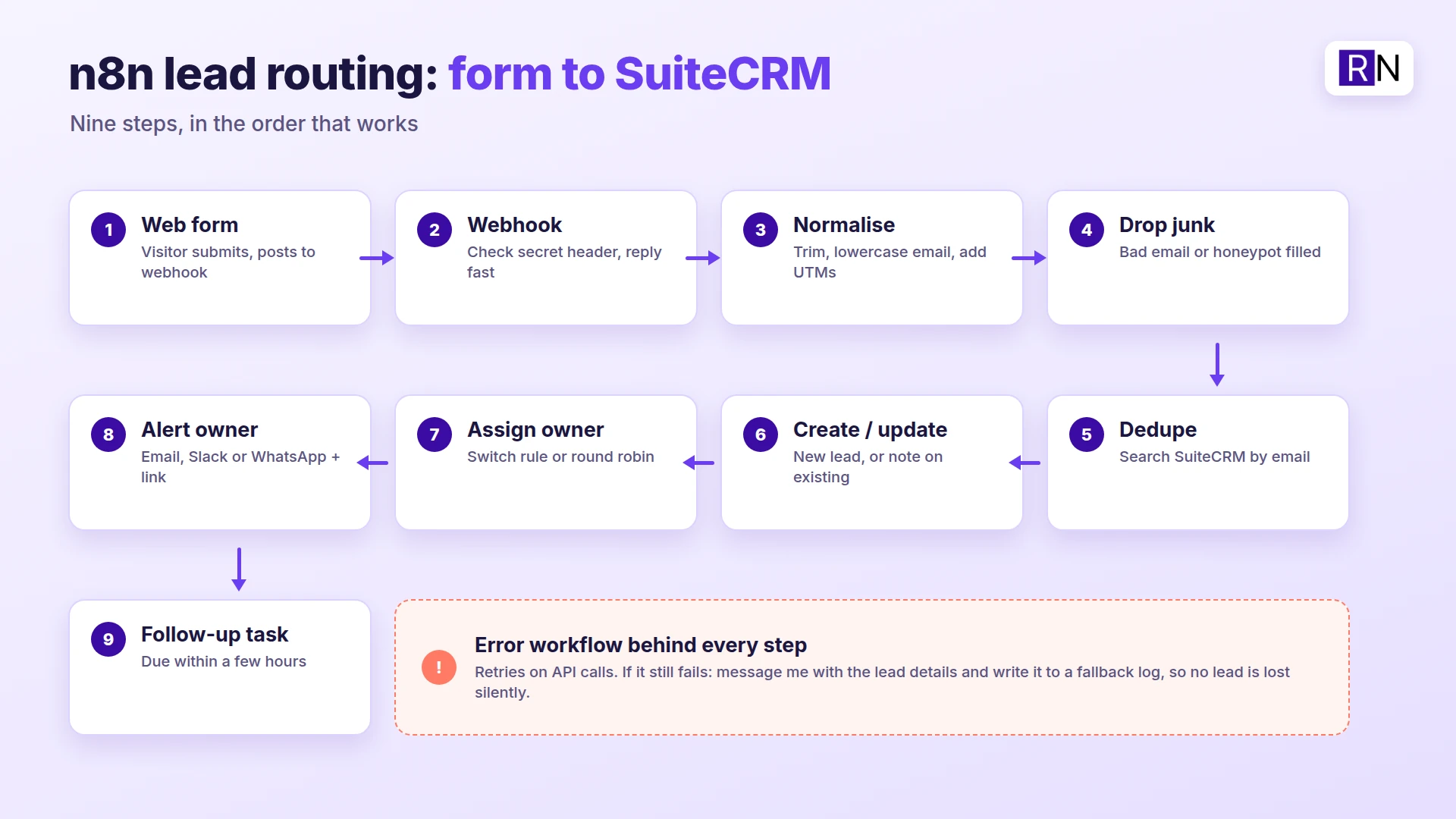
- A form on your website sends the submission to an n8n webhook.
- n8n tidies the fields and adds the source and campaign details.
- Junk and bot submissions are dropped.
- n8n searches SuiteCRM for the same email.
- If the record exists, it is updated, and a note is added. If not, a new lead is created.
- The lead is assigned to an owner by rule.
- The owner gets an alert with the key details and a direct link to the record.
- A follow-up task is created with a due time.
- Anything that fails is logged and reported.
What you need
- n8n, self-hosted or cloud.
- SuiteCRM with API access set up (I use the v8 REST API with OAuth2 client credentials).
- A form that can send a webhook. Contact Form 7, WPForms, Gravity Forms, Typeform and custom HTML forms can all do it, directly or through an add-on.
- Somewhere to send alerts: email, Slack, Telegram or WhatsApp.
I generally use Telegram. I know that is a little odd, but as a one-person marketing team it suits me: the messages don’t clog up a shared channel, and it is free.
Step 1: The webhook trigger
Set the Webhook node to POST. n8n gives you a test URL and a production URL, and they are different. Use the test URL while you build, then switch the form to the production URL once the workflow is live. Add a shared secret in a header and check it, so random traffic can’t create fake leads. Respond straight away so the visitor isn’t left waiting on the rest of the workflow.
Step 2: Normalise the data
Use an Edit Fields (Set) node to make every submission look the same. Trim spaces, lowercase the email, split the full name into first and last, and add the page URL, the source, the UTM values and a timestamp. Doing this once at the start means every later step can trust the shape of the data.
Step 3: Drop junk early
Add an IF node that rejects submissions with an invalid email, an empty required field, or a filled hidden honeypot field. Send rejects to a log, not to the CRM. Cleaning the CRM later costs far more than filtering at the door.
Step 4: Dedupe before you create
Search SuiteCRM for the email first. Forms get submitted twice, people come back with a new enquiry, and old contacts fill in the form again. If a match exists, update that record and add a note with the new message. If not, create a new lead. This one step keeps your CRM clean.
Step 5: Create or update the record in SuiteCRM
At the time of writing, n8n has no dedicated SuiteCRM node, so I call the API with the HTTP Request node. First request an access token with your client credentials, then use it to search and write records. SuiteCRM’s v8 API expects JSON:API formatted requests, so copy the structure from a working example and test with a single record before you connect the form.
Step 6: Assign an owner
A Switch node can route by rule: by country, by service, by company size, or round robin. Start with something simple. If the rule is too complex to explain to your team, it will get ignored.
Step 7: Alert the owner
Send the alert where people check. Include the name, company, message, source and a direct link to the SuiteCRM record, so one click opens the lead. Keep it short enough to read on a phone.
Step 8: Create a follow-up task
Create a task in SuiteCRM linked to the lead, due within a few hours. The alert grabs attention, and the task makes sure the follow-up is still tracked if the alert gets buried.
Error handling: do not lose a lead
Build a separate workflow that starts with an Error Trigger and set it as the error workflow for this one. When something fails, it should message you with the lead details and write them to a fallback log, so you can add the lead by hand. Turn on retries for the API calls too, because a short network blip shouldn’t need a human.
Test the ugly cases on purpose: a duplicate email, a missing field, a very long message, SuiteCRM being unreachable, and an expired token.
Pitfalls I would watch for
- Test vs production URL. A form still pointing at the test URL is the classic reason a live workflow gets nothing.
- Webhook URL behind a proxy. If n8n runs behind a reverse proxy, set its public webhook URL correctly or it will show the wrong address.
- Credentials in exported JSON. Never share a workflow export with tokens in it. Keep secrets in n8n credentials.
- Spam. Add the honeypot and the secret header from day one.
- Time zones. Store every timestamp in one time zone and convert only when you display it.
- Over-engineering. Ship the eight steps, watch real leads for a week, then add enrichment or scoring.
What it costs compared with Zapier
I have never paid for Zapier. I tried the free version a long time ago and found it limited, and on a low budget I didn’t want to spend much time or money testing the paid plans.
Zapier charges per task, so one lead that touches three apps uses three tasks. Self-hosted n8n has no per-execution fee, but you pay for hosting and you maintain it. That trade suits me because I already self-host my tools.
If your leads also come from Meta lead forms, the same pattern applies. I covered the ad side in my post on Meta Ads optimization and CRM integration, and the follow-up emails in self-hosted email marketing in SuiteCRM.
FAQ
What is n8n lead routing?
It is an n8n workflow that takes a new lead from a form or ad, cleans it, saves it in your CRM and sends it to the right person automatically.
Can n8n connect to SuiteCRM?
Yes, through SuiteCRM’s REST API using n8n’s HTTP Request node. Check that API access is enabled for your SuiteCRM version and use OAuth2 client credentials.
How do I stop duplicate leads in the CRM?
Search by email before creating a record. If one exists, update it and add the new message as a note. Only create a new lead when there is no match.
Do I need to self-host n8n?
No. n8n Cloud works too. Self-hosting removes per-execution fees and keeps data on your own server, but it also makes updates and backups your job.
What happens if SuiteCRM is down when a lead arrives?
With retries and an error workflow, the lead is retried and, if it still fails, logged and sent to you so you can add it by hand. Without that, the lead can disappear.